How to use
1 Overview
The smartChord Drum Machine turns your phone into a flexible rhythm tool. Use it for the musical accompaniment of your songs, as an advanced metronome, as a rhythm trainer, or simply to jam around with a drum kit. Create your own drum patterns, share them with friends or students, or download hundreds of patterns shared by other smartChord users.
For a complete overview, see the Drum Machine Overview.

The Drum Machine in action — a “Rock 4/4 – 17” pattern
2 Part of the smartChord Toolbox
The Drum Machine is one of the many features in the smartChord toolbox. All tools are tightly integrated — from chords, scales, and arpeggios to tuner, metronome, ear training, and songbook — so the rhythm you create here can drive the rest of your practice or performance seamlessly.

The smartChord toolbox — tap “Drum machine” to get started
3 Jamming with the Drum Kit
Want to play percussion without programming a pattern first? Open the simple Drum kit from the toolbox and tap the pads to play live. It is the fastest way to get a beat going or to jam alongside a song.
Both the Drum Machine and the Drum kit can also run in the background, so you can keep the rhythm playing while you switch to other smartChord features or even other apps on your device.

The simple Drum kit — tap a pad to play it live
4 Building a Drum Pattern
Create your own drum patterns by tapping cells in the grid. Each row represents an instrument, each column a beat or sub-division. Be creative — that’s a lot of fun.
4.1 Editing Beats
- Tap a cell — Add or remove the instrument from the selected beat
- Select a beat — Long-press to highlight it, then add another beat after it or delete it
- Quantization — Choose up to four sub-divisions per beat for eighth notes, triplets, sixteenth notes, and more

Select a beat to insert another beat after it — or to delete it
5 Choosing Instruments
The Drum Machine ships with more than 40 percussion instruments. You can use up to 16 in parallel within a single pattern, giving you all the flexibility you need for a full drum kit and beyond.
5.1 Instrument Selection
- Select an instrument — Tap an instrument row to change it or add another one to the pattern
- Volume and velocity — Adjust each instrument’s loudness and accent independently
- Use the same instrument twice — Add two rows of the same instrument with different velocities for accented hits

Choose from 40+ percussion instruments

Adjust volume and velocity for each instrument
6 Tempo, Speed Trainer & Timer
The Drum Machine doubles as an advanced metronome: you get a much more musical context than a simple click, plus all the practice tools you need to work on your timing.
6.1 Tempo Controls
- BPM slider — Set the tempo precisely with named tempo markings (Adagio, Andante, Allegro, …)
- Tap tempo — Tap a button to set the BPM by feel
- Count in — Optional count-in before playback starts
- Quantization — Up to four sub-divisions per beat
6.2 Practice Tools
- Speed trainer — Increase the tempo step by step to build up speed gradually
- Timer — Run a structured practice session for a fixed duration
Read more about the rhythmic side in the Advanced metronome and Rhythm trainer articles.
Tempo, sub-divisions, speed trainer, timer, and tap tempo — all in one place
Tap “Background” to keep the beat running in other apps
7 Managing Your Patterns
All your drum patterns live in the Library. From there you can create, save, rename, share, or organise them — the same management workflow you know from the rest of smartChord.
7.1 Pattern Menu
- New — Start a new empty pattern
- Open | manage — Browse the Library
- Save / Save as / Rename — Keep your work and give patterns clear names
- Add to favorites — Mark the patterns you use most often
- Share — Send a pattern to friends, students, or the smartChord team

The Drum Machine menu — from “New” to “Share”

A fresh Library — ready to be filled
8 Hundreds of Shared Patterns
Your list starts almost empty — but other smartChord users have shared hundreds of drum patterns across many genres. Download the collection and import the patterns you like.
8.1 Importing Patterns
- Open the share/import view to see all available patterns (Afro-Cuban, Ballad, Blues, Funk, Jazz, Pop, Reggae, Rock, …)
- Tap Import to start the selection
- Tick the patterns you want to keep
- Confirm to add them to your Library

Browse the community library
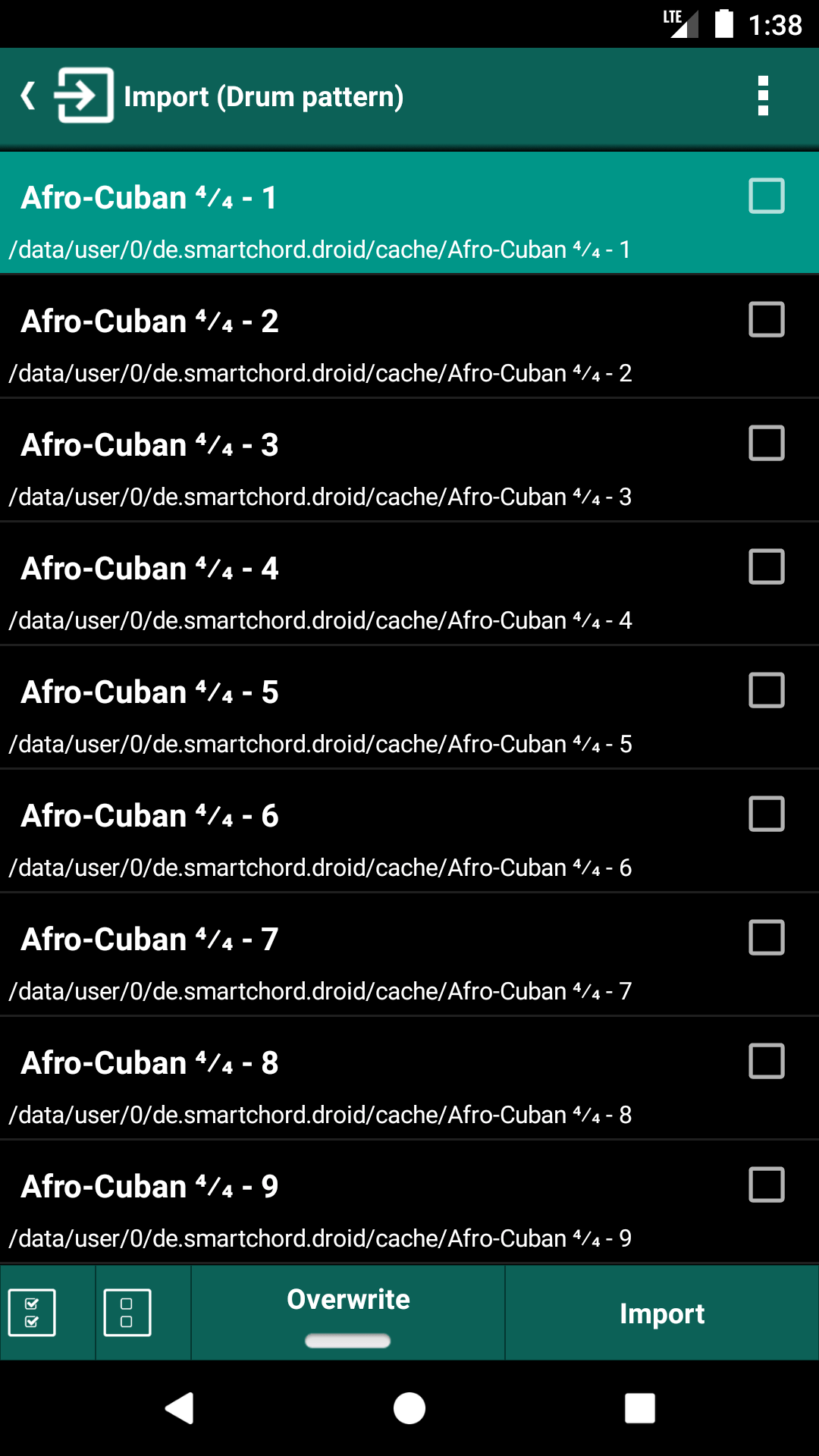
Tick the patterns you want and tap “Import”
9 Previewing Patterns
Once imported, your patterns appear in the Library. Activate the preview to see the minimised pattern at the bottom of the list and tap play to listen to it before opening it for editing.

Imported patterns ready to use

Preview the minimized pattern and play it
11 Accompaniment in the Songbook
Use the Drum Machine for the musical accompaniment of the songs in your Songbook. The Drum Machine is one of four possible players (Audio player, Drum machine, Metronome, YouTube player) and can be selected automatically based on the linked content of a song.
11.1 How It Works
- Automatic player selection — smartChord picks the right player for each song based on its linked content
- Pick a drum pattern — Tap to choose which pattern accompanies the song
- Synchronised tempo — The Drum Machine uses the BPM of the song
- Start together — Starting the song starts the drum machine; tapping the player tile is one way to stop it
For more about rhythmic accompaniment in your songs, see Rhythmic accompaniment.

Choose the player — Drum machine is one of four

A drum pattern linked to a song — tempo follows the song
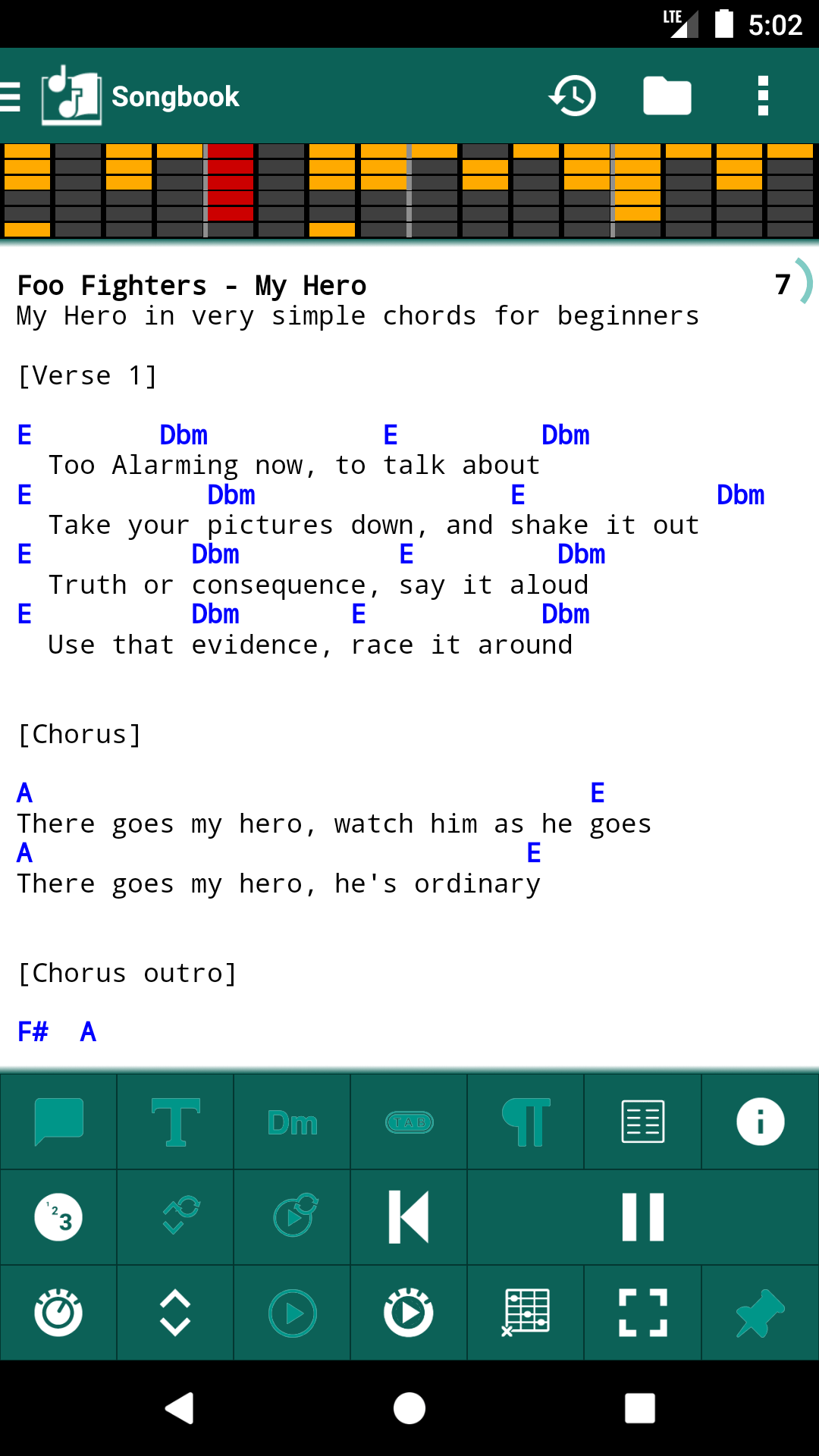
Start the song and the Drum Machine plays along