Playground Overview
Explore, experiment, and play – discover the musical world of your fretboard!
The smartChord Playground is exactly what its name suggests: a place to explore and experiment with the sounds of your instrument. It allows you to play, modify, and analyze the tones, chords, and fingerings on your fretboard – helping you understand your instrument from a completely new perspective.
Whether you want to test a new chord voicing, listen to harmonic relationships, or simply play around with musical ideas, the Playground gives you the freedom to create, explore, and learn interactively.
🎸 It’s your virtual instrument lab – perfect for musical discovery and creative inspiration!
⭐ Highlights
- Play and explore your fretboard acoustically – hear the tones of any fret or chord
- Three interactive modes for different learning and exploration purposes
- Create and modify chord progressions directly on the fretboard
- Experiment with diatonic functions and harmonic relationships
- Save and recall your favorite chords or progressions for practice and composition
- Multitouch support for more natural playing
- Highlight played strings for better visual feedback
- Vibration feedback for tactile response
- Switch instruments and tunings easily
Modes of the Playground
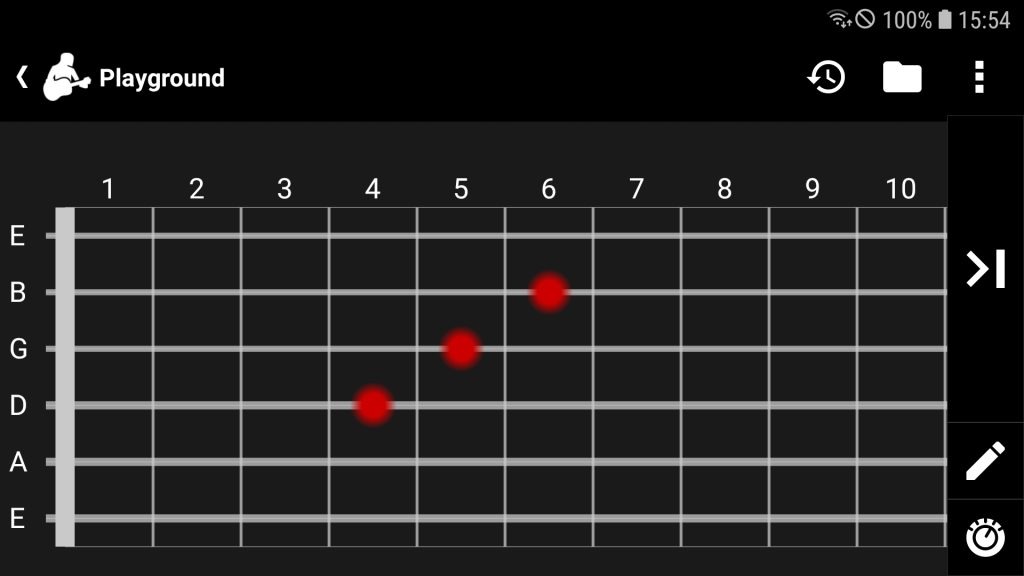
1. Fretboard (Pure mode)
Play the individual tones of your fretboard simply by tapping on the frets. This mode is perfect for:
- Exploring note positions
- Training your ear and fretboard knowledge
- Experimenting with scales, intervals, and melodic ideas
You can also change the instrument and tuning, and choose whether note names are displayed on the fretboard.
2. Chord per Fret mode
Play different chords without physically grabbing them – something you can only do in the digital Playground! In this mode, each fret represents a chord, and all chord tones are placed on the same fret.
You can strum across the strings to hear each chord and even create chord progressions directly on the fretboard.
Editing your chords:
- Tap the pencil icon to enter Edit mode
- Tap ‘+’ to add a new chord or fingering
- Tap a chord name to change it
- Tap ‘X’ to delete a chord
- Tap the checkmark or use the back button to return to Play mode
This mode is ideal for experimenting with harmonic sequences or trying new chord progressions.

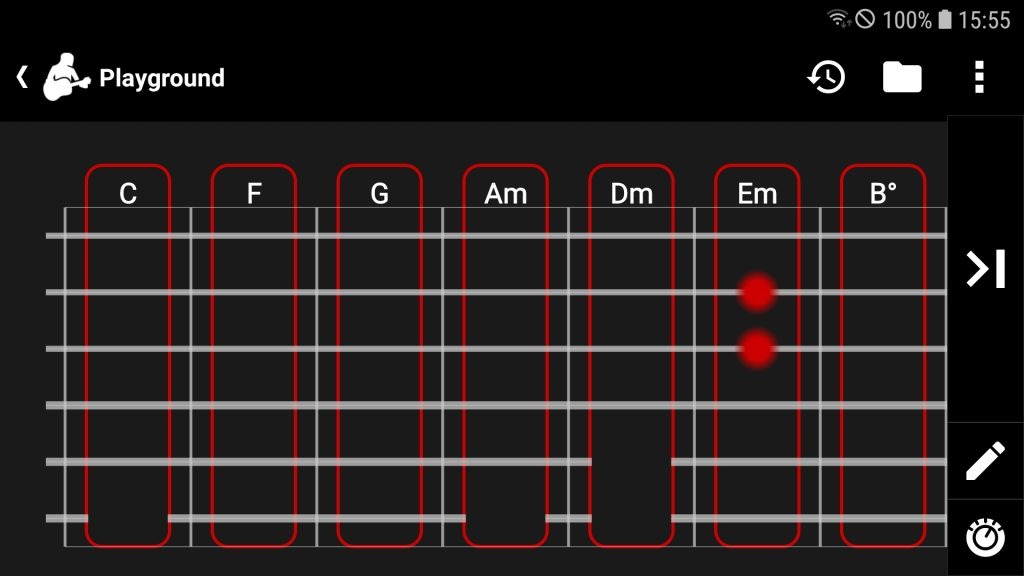
3. Chords (Diatonic Function mode)
This mode places chords across the fretboard according to diatonic function theory – the harmonic relationships within a key.
Each fret represents a chord based on its function:
| Function | Description |
|---|---|
| I | Tonic |
| IV | Subdominant |
| V | Dominant |
| VI | Parallel tonic |
| II | Parallel subdominant |
| III | Parallel dominant |
| VII | Incomplete dominant seventh |
Select your tonic (root note) with the pencil button, then strum or tap the frets to hear the chords and explore how they relate harmonically.
For more background, see: Diatonic function – Wikipedia
💡 Creative Uses
- Experiment with new chord progressions and harmonic ideas
- Save and organize your favorite chords or progressions for later use
- Explore music theory concepts interactively
- Compose, practice, and understand your instrument in a new way
The smartChord Playground is a space for musical exploration — whether you’re discovering chord relationships, studying harmony, or just having fun with sounds.
It turns your smartphone into a creative laboratory for learning, improvisation, and inspiration.
smartChord Playground – play, explore, and unlock the full potential of your fretboard.
⚙️ Settings and Options
- Instrument and tuning: Switch between different instruments and tunings (e.g. guitar, ukulele, banjo, bass)
- Fret markers: Enable or disable fret position markers
- Show note names: Display note names directly on the fretboard
- Highlight played strings: Visually highlight strings that are being played
- Vibration: Feel the rhythm through vibration feedback when strings are played
- Multitouch support: Play multiple strings or notes at once for a realistic experience