How to use
1 Overview
The smartChord Fretboard Trainer helps you learn notes, chords, intervals, scales, and scale degrees across the entire fretboard in a playful and nevertheless very effective way. It works for every possible tuning and instrument.
For a complete overview of all features, see the Fretboard Trainer Overview.
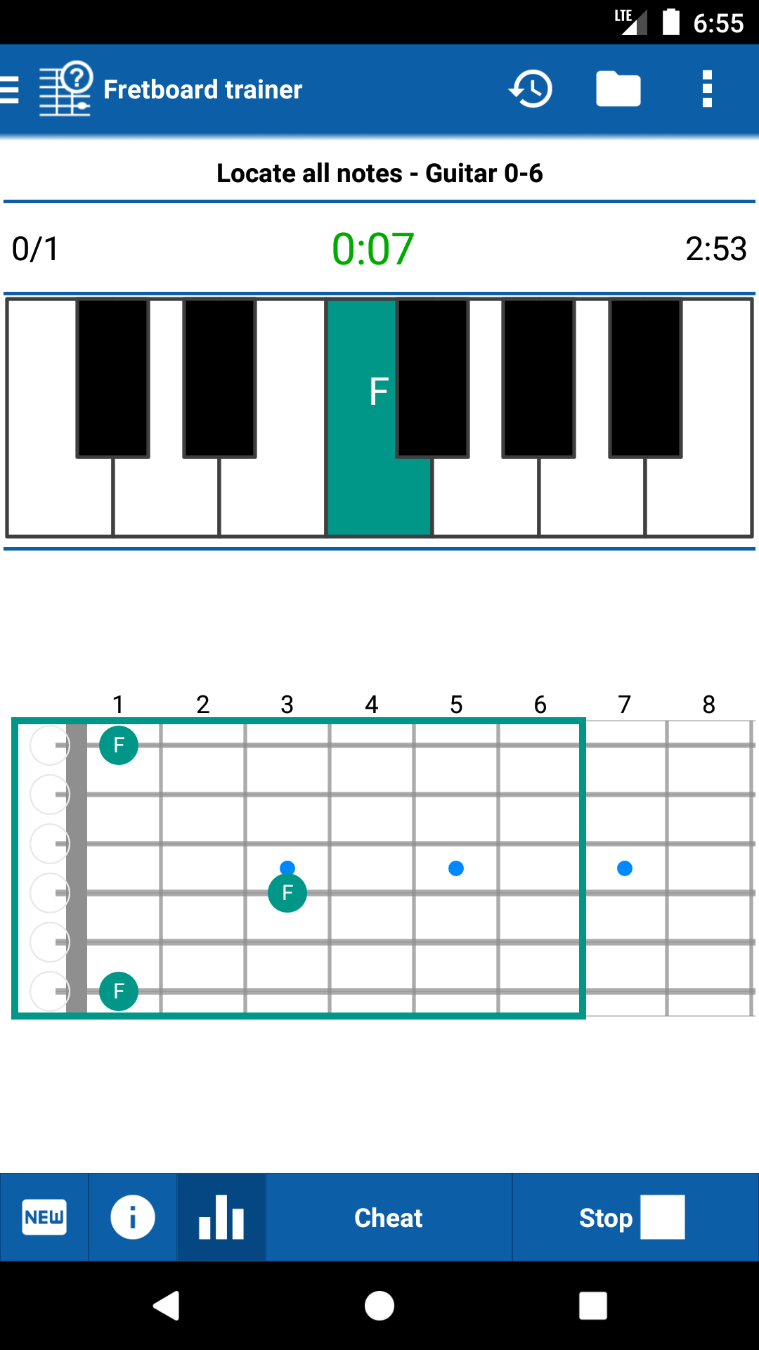
The Fretboard Trainer in action — a note quiz on guitar
2 Part of the smartChord Toolbox
The Fretboard Trainer is one tool in a huge toolbox where all the tools are very well integrated into each other. From chords, scales, and arpeggios to a metronome, tuner, ear training, and songbook — everything works together seamlessly.

The smartChord toolbox — tap “Fretboard trainer” to get started
3 Creating Your Own Quizzes
Create your own quizzes with countless possibilities. You can switch quickly between your quizzes and play each quiz repeatedly in multiple games. Each quiz stores its own setup — including instrument and tuning — independently from the main smartChord settings.
3.1 Getting Started
- Use the menu ‘Folder -> New’ to create a new quiz
- Each quiz has its own aim and configuration
- You can play a quiz repeatedly in multiple games
For all configuration options, see Create quizzes and play games.
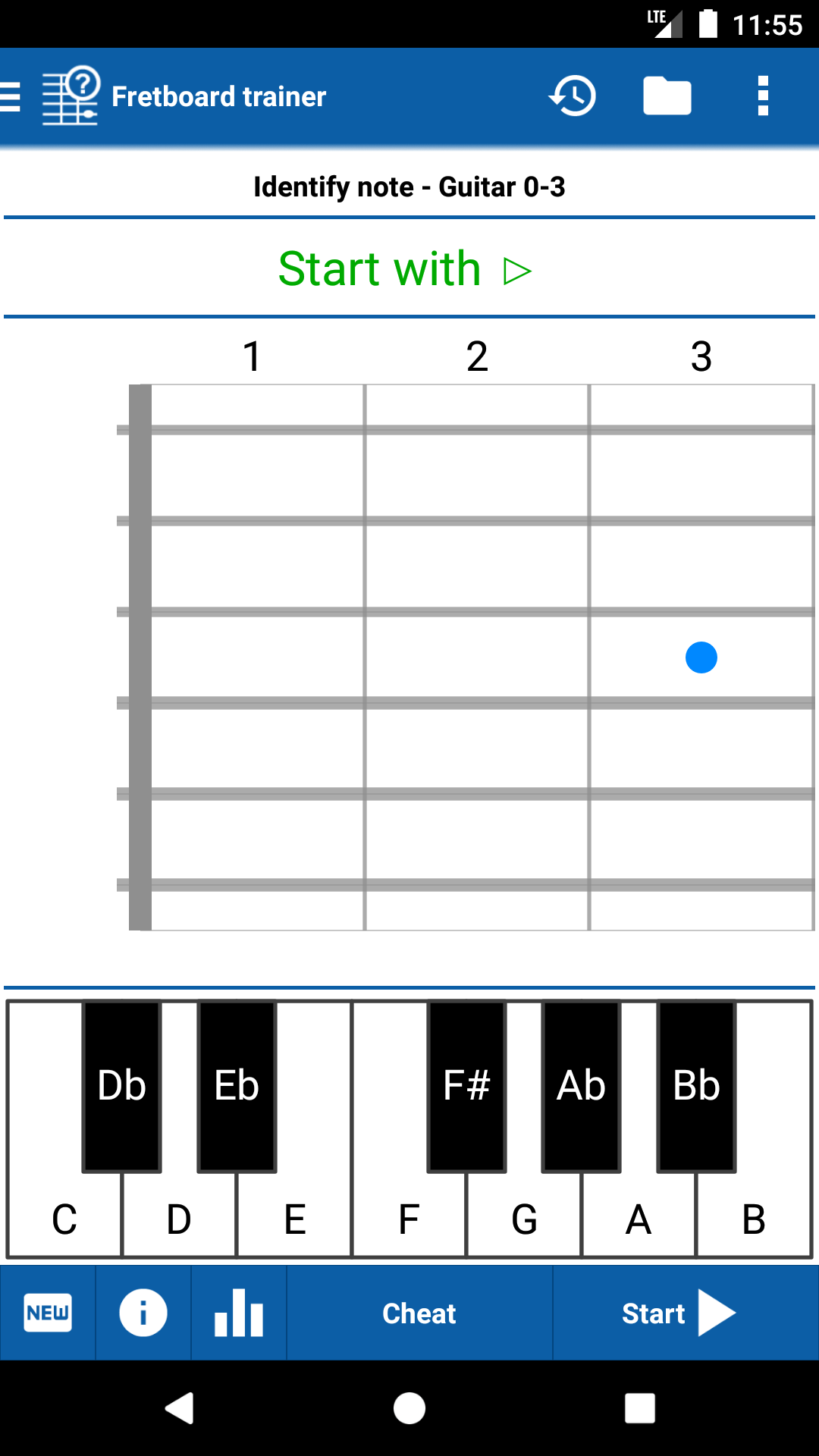
A quiz ready to start — “Identify note” on Guitar frets 0-3

Tap the info button (i) to view the quiz configuration
4 Quiz Types & Configuration
The Fretboard Trainer offers 12 different quiz types organized in five categories. When creating a new quiz, you define an individual configuration for it.
4.1 Notes
- Identify note — A note position is shown on the fretboard and you have to enter the correct name
- Locate note — You get a note name and have to find it on the fretboard (easy: one location, difficult: all locations)
4.2 Intervals
- Identify interval — The fretboard shows you an interval and you must enter the name of that interval
- Locate interval — You get an interval and have to enter it on the fretboard by choosing two notes
4.3 Chords
- Identify chord — A chord fingering is shown and you have to enter the correct name
- Locate chord — You get a chord name and have to enter it on the fretboard
4.4 Scales
- Identify scale — A scale pattern is shown and you have to identify it
- Locate scale — You get a scale name and have to find it on the fretboard
- Locate scale (all positions) — Find all positions of a scale on the fretboard
4.5 Scale Degrees
- Identify scale degree — A position on the fretboard is highlighted and you must identify which scale degree it represents
- Locate scale degree — You are given a specific scale degree and you must find it on the fretboard
For details on each quiz type, see Quiz types.

Create quiz form with all options

Select from 12 different quiz types in five categories
5 Selecting Chords for a Quiz
For chord-based quizzes, you can select the chords you want to learn one by one or add all chords of a song at once.
5.1 How to Add Chords
- In the “Create quiz” screen, tap “Tap to define the scope”
- The Manage chord set screen opens
- Tap the + button to add chords
- Choose how to add chords:
- Chord — Pick individual chords
- Fingering favorites — Use your saved favorites
- Chord set from chord progression — Import from a progression
- Chord set from song — Import all chords of a song at once
- Confirm your selection with the checkmark

Manage chord set — empty
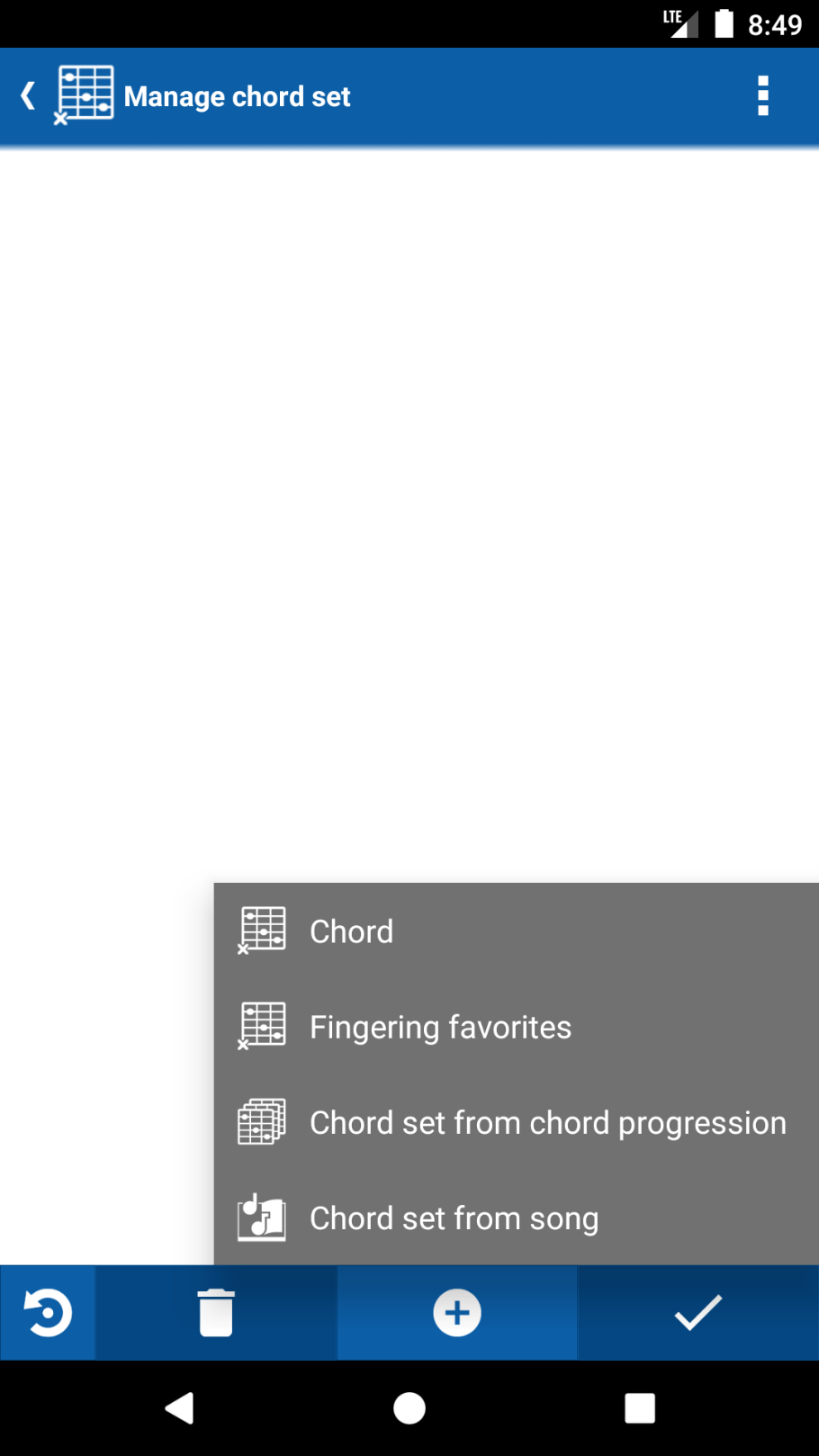
Tap + to choose how to add chords

Chords added to the set

Quiz creation with the chord scope defined
6 Question & Answer Views
Depending on the quiz type, you have different views for both questions and answers. This variety keeps training engaging and effective.
6.1 Question Views
- Fretboard — Notes or chords shown on the fretboard
- Piano — Notes displayed on a piano keyboard
- Musical notation — Notes presented on a staff (with octave transposition option)
- Text — The name shown as plain text
- List — A list of options to choose from
- Sound — The note or chord is played as audio
6.2 Answer Views
- Fretboard — Tap the correct position on the fretboard
- Piano — Tap the correct key on the piano
- List — Choose from a list of possible answers
- Microphone — Play the answer on your instrument — smartChord is listening!
For details on each view, see Question and answer views.

Always an option for question or answer

Show notes or answer on a piano keyboard

Just the chord or note name as plain text

A list of possible answers to choose from

Questions presented as notes on a staff

Play the answer on your instrument — smartChord listens!
7 Advanced Quiz Configuration
Fine-tune your quiz to match your skill level and training goals. You can customize timing, fretboard range, instrument, tuning, and even which strings are included.
7.1 Configuration Options
- Maximal duration per question — Optionally limit the time for an answer
- Duration unit — Choose between minutes or number of questions per game
- Duration — Set the total length of a game
- Range — Set an individual fretboard range; make it more difficult from quiz to quiz
- Visible range — Extend the visible fret range beyond the quiz range for better orientation
- Strings — Select which strings are considered in the quiz for focused practice
- Instrument — Choose between your favorite instruments (define them beforehand in settings)
- Tuning — Pick a tuning from 500 predefined options or use your own custom tuning
For details on fretboard range and string selection, see Fretboard range.

Advanced options: range, strings, instrument, and tuning
8 Training Modes
The Fretboard Trainer offers two training modes to suit different learning styles:
8.1 Random Selection
Questions are presented in random order. Good for a quick, varied practice session.
8.2 Lab after Lab (Spaced Repetition)
This is probably the most effective training mode. It is based on the psychological principle that spacing out the review of information over time leads to better long-term retention compared to cramming or constant repetition.
- Initial learning — You are presented with a set of values to learn
- Testing — You are quizzed on these values. Correct answers may not be presented again immediately
- Repetition — Correctly answered values are scheduled again at increasing intervals
- Feedback loop — Incorrectly answered values are presented more frequently until you consistently answer them correctly
Learn more about Training modes.
9 Saving Your Quiz
After creating a quiz, you can save it to play the game as many times as you like. You’ll get a name suggestion based on the quiz configuration, but you can customize it.

A saved quiz ready to play — “Locate all notes” with musical notation and fretboard
10 Playing a Game
Once your quiz is set up, hit Start to begin playing. Here’s how a game works:
10.1 During the Game
- The question is shown in the upper view
- You give your answer in the lower view
- The game shows the current state: question count, time elapsed, and remaining time
- Immediately after answering, the next question follows
- The game ends automatically when the time or question limit is reached, but you can stop it at any time
- Use the “Cheat” button if you need a hint (it will be tracked in your statistics!)

A running game — “Correct: F#” with all positions highlighted on the fretboard
11 Tracking Your Progress with Statistics
Statistics offer valuable insights into your learning journey and help you identify areas for improvement for a more personalized experience.
11.1 Why Statistics Matter
- Progress tracking — Monitor your performance over time
- Identifying weaknesses — Analyze quiz results to spot specific fretboard difficulties and focus practice accordingly
- Setting goals — Establish realistic benchmarks using previous quiz data
- Motivation — Higher scores and lower error rates encourage continued practice
11.2 Statistics Views
- Summary — Worst and best performance at a glance (duration per question, score, number of questions)
- Table — Detailed history of each game with date, duration, cheats, ratio, and result
- Distribution — See which chords or notes you get right and which ones need more practice
- Chart — Track your score, number of questions, and response time over time

Summary: Worst vs. Best

Table: Game-by-game history

Distribution: Right vs. Wrong per chord

Chart: Progress over time
12 Additional Features
The Fretboard Trainer includes several additional features to enhance your learning experience:
- Left-handed fretboard — Full support for left-handed players
- Solfege notation — Use Do-Re-Mi instead of C-D-E if preferred
- Nashville Number System (NNS) — Practice with scale degree numbers
- Hints across all modules — Get help when you’re stuck (tracked in statistics)
- Sheet music octave transposition — Adjust notation display for your instrument
For more details, visit the Fretboard Trainer Overview or check the FAQ.
“We are what we repeatedly do.
Excellence then is not an act but a habit.”
