Tone Generator Overview
Table of Contents
Test your hearing, headphones, speakers, or other audio equipment – easily and accurately.
🔊 How It Works
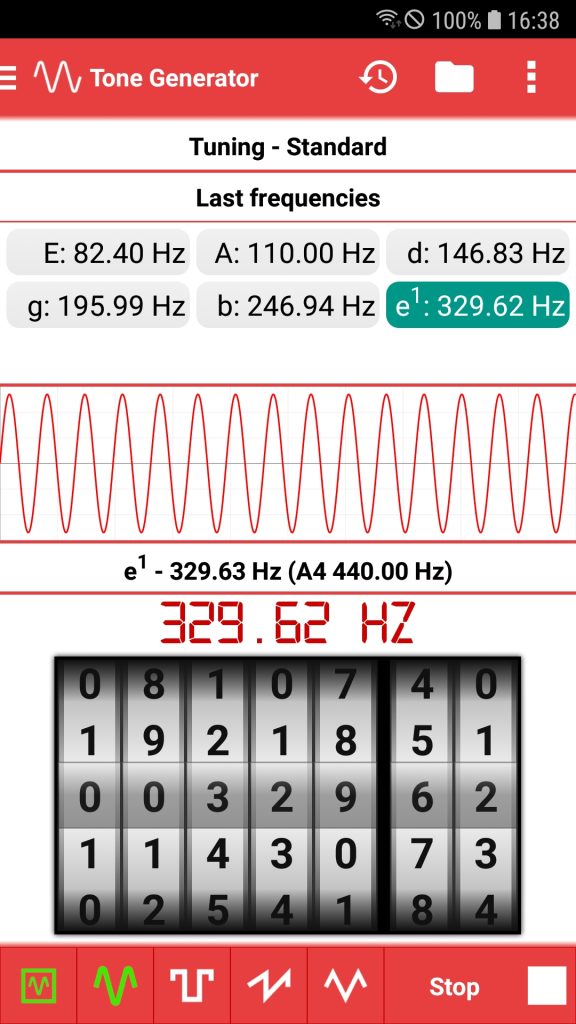
- Set the frequency: Use the control wheels to select your desired frequency.
- Start & Stop: Tap “Start” to begin tone generation. The tone plays continuously until you press “Stop.”
- Note detection: As you adjust the frequency, the nearest musical note (including octave) is shown – perfect for musicians.
- Choose by note: Tap the note display to select a frequency by musical note (only available on larger screens).
🧠 Key Features
- 🔁 Recent Frequencies: Recently used frequencies are saved and can be recalled at any time.
- Remove entries individually or all at once via the 3-dot menu or long press (context menu).
- 📊 Frequency Visualization: Option to display the frequency graphically.
- 🔄 Waveform Selection: Switch between Sine, Sawtooth, Square, and Triangle waveforms.
- 🎼 Tuning: Use the menu to view the full list of note frequencies based on your current tuning.
- 🎼 Notes: Use the menu to view the standard note frequencies for C4 to B4.
💡 Tips & Notes
- Better Sound Range: Your phone or tablet speaker has a limited frequency range. For better results, use external speakers or high-quality headphones.
- Quick Navigation: Tap on the title (e.g., of a song, set list, or quiz) to open the Library.
- Save and organize: Save multiple frequency sets for exercises or tests – and switch between them easily. Ideal for training, teaching, or technical use.
⚙️ Settings Overview
- Auto-Save: When enabled, changes are automatically saved when leaving the screen.
- Note-based Frequency Selection: Choose a musical note and octave to directly set the corresponding frequency.
- Signal Type: Choose the waveform type for tone generation. Default: Sine.